App Guide
Everything you need to know about Flying Start for iPhone and Apple Watch. Every feature, every setting, every mode.
Contents
- Overview
- Race Types
- Starting a Race
- Setting the Start Line
- Start Line Widgets
- Race Mode
- Race Mode Transition
- Line Calculation Mode
- Map & Landscape View
- GPS Settings
- Display Modes
- Units
- Race History & Start Rating
- Crew Sync
- Race Tracking
- Notice Board
- Apple Watch
- Live Activity & Dynamic Island
- Free vs. Pro
1. Overview
Flying Start is a sailing race countdown timer with GPS start line intelligence. It runs on iPhone and Apple Watch.
A tab bar at the foot of the screen switches between RACE, MY RACES and SETTINGS. Settings is a full page like the others, not a slide-up sheet, so there is no DONE button — tap another tab to leave it. Four buttons in the top bar give quick access to the rest:
| RACE (tab) | Countdown timer, start line widgets, PIN/RC controls |
| MY RACES (tab) | Past races, start ratings, season stats, upcoming races |
| SETTINGS (tab) | All app settings, subscription, account |
| Race Tracking (top bar) | Broadcast your GPS position to spectators during a race |
| Crew Sync (top bar) — iOS only | Host or join a Crew Sync session over Wi-Fi (iOS only) |
| Notice Board (top bar) | Read notices from your sailing club |
2. Race Types
Choose your countdown sequence from Settings > Race Type. The race type determines the countdown length and signal schedule.
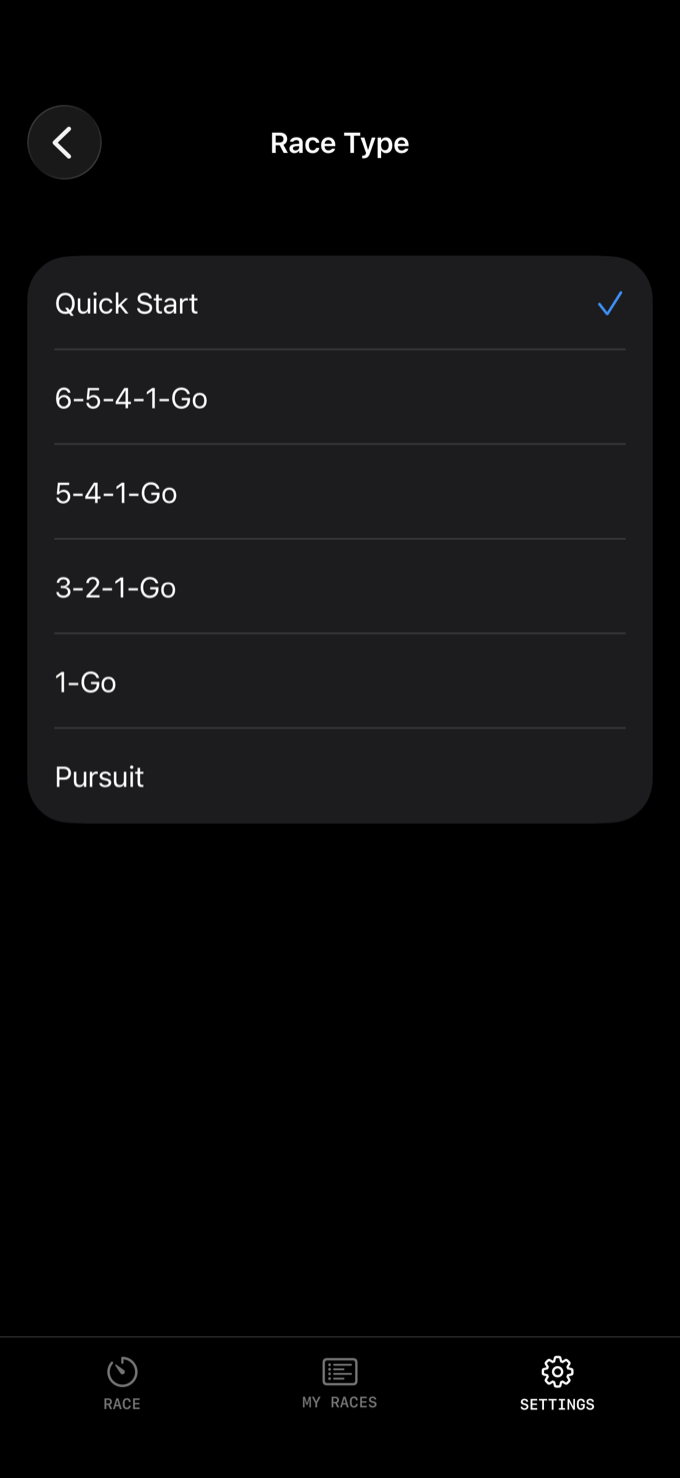
| Type | Duration | Signals |
|---|---|---|
| Quick Start | Instant | Start gun only |
| 6-5-4-1-Go | 6 min | Warning at 6:00, Class Flag at 5:00, Preparatory at 4:00, One Minute at 1:00, Start at 0:00 |
| 5-4-1-Go | 5 min | Warning at 5:00, Preparatory at 4:00, One Minute at 1:00, Start at 0:00 |
| 3-2-1-Go | 3 min | Warning at 3:00, Preparatory at 2:00, One Minute at 1:00, Start at 0:00 |
| 1-Go | 1 min | One Minute at 1:00, Start at 0:00 |
| Pursuit | Fixed time | One Minute at 1:00, Start at 0:00 |
Quick Start
No countdown — tap GUN and you're racing. Good for informal racing or when you've missed the sequence and just need to start the clock.
6-5-4-1-Go
A 6-minute sequence with a warning signal 6 minutes before the start, class flag at 5, preparatory at 4, one-minute signal, then the start. Common at clubs that give an extra warning sound before the class flag goes up.
5-4-1-Go
The standard World Sailing 5-minute sequence. Warning signal at 5 minutes, preparatory at 4, one-minute signal, then the start. This is the default and by far the most common sequence in club and regatta racing.
3-2-1-Go
A shorter 3-minute sequence used by some clubs and youth racing. Same signal pattern compressed into 3 minutes. Useful when the race committee is running back-to-back starts and wants to keep things moving.
1-Go
A 1-minute countdown with just the one-minute signal and the start gun. Common in match racing or when the race committee calls a one-minute start for a restart.
Pursuit
Set a fixed start time (hours, minutes, seconds) and the app counts down to it. When you select Pursuit mode, the start time automatically sets to 10 minutes from now with the seconds zeroed — adjust as needed. Used for pursuit races where different classes start at staggered times based on handicap.
3. Starting a Race
The basic flow for every race:
1 Choose your race type in Settings (or use the default 5-4-1-Go).
2 Set the start line by tapping PIN and RC at each end of the line (optional but needed for GPS widgets).
3 Tap GUN when the warning signal fires. The countdown begins.
4 Sail your approach. Watch the start line widgets — DTL, TTL, Early/Late — to judge your approach.
5 The countdown reaches zero. The app fires an audio signal and automatically transitions to Race mode.
6 Slide FINISH when you cross the finish line (or slide ABORT to cancel). Both are slide-to-confirm, so a knock on the deck cannot end your race.
On-screen buttons
4. Setting the Start Line
The start line is defined by two GPS marks — PIN (the pin end) and RC (the race committee boat end). Setting these enables all the GPS-based start line widgets.

1 Sail to (or stand near) one end of the start line. Tap PIN.
2 Sail to (or stand near) the other end. Tap RC.
3 The start line appears on the map as a line between the two marks. All line-dependent widgets (DTL, TTL, ELI, ELD, VMG) activate.
Tap CLEAR to remove both marks and start over. You can update PIN or RC at any time by tapping them again — useful if marks drift.
Bow Offset
Found in Settings > Navigation. This adjusts the GPS position forward by 0–10 metres (in 0.5m steps) to account for the distance between your phone/watch and the bow of the boat. If your phone is at the helm and your bow is 3 metres forward, set the offset to 3m so the distance readings are accurate to the bow, not the cockpit.
5. Start Line Widgets
Widgets display real-time GPS data during the countdown, shown below the timer. Configure which widgets are visible and their order in Settings > Start Line Widgets.
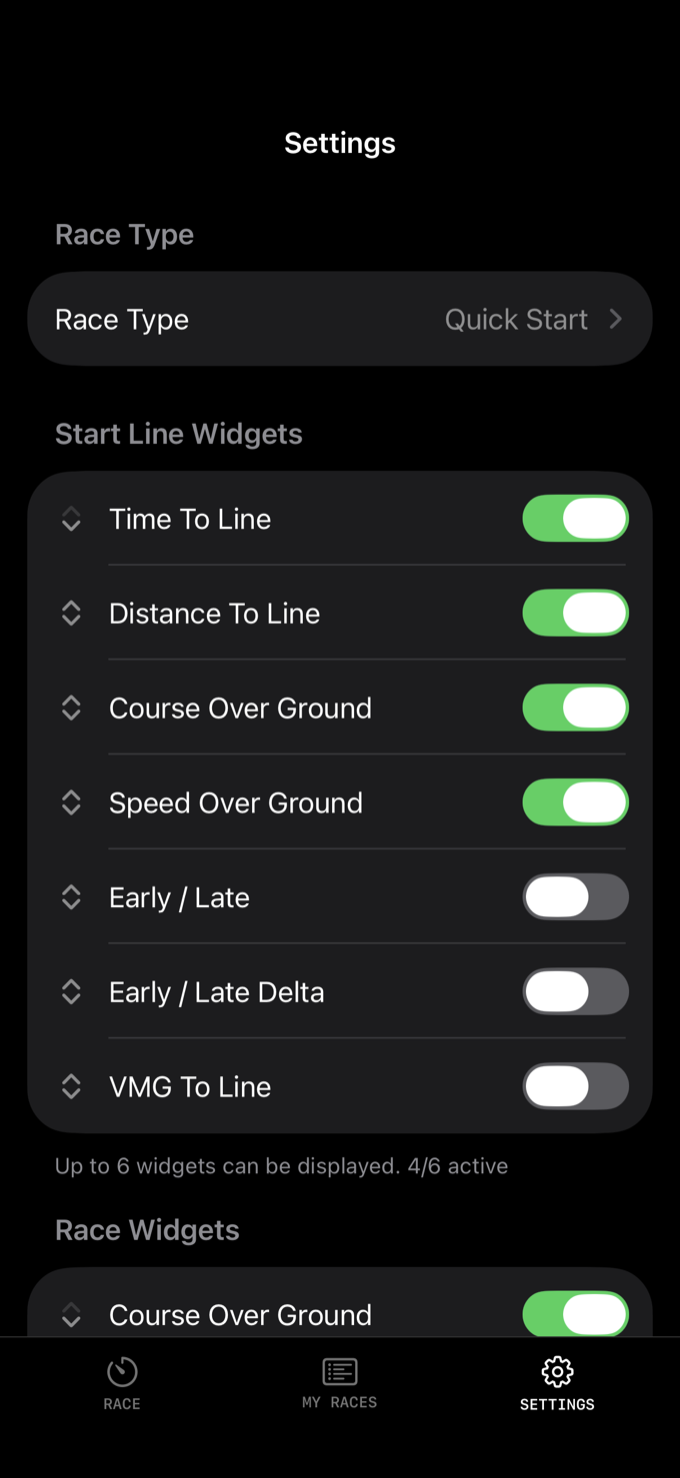
| Widget | What it shows | Default |
|---|---|---|
| DTL — Distance To Line | How far you are from the start line, in metres or feet | On |
| TTL — Time To Line | How long until you reach the line at current speed and heading | On |
| COG — Course Over Ground | Your compass heading based on GPS movement | Off |
| SOG — Speed Over Ground | Your speed in your chosen units (knots, km/h, or mph) | Off |
| ELI — Early/Late Indicator PRO | Shows EARLY or LATE — whether you'll arrive at the line before or after the gun | Off |
| ELD — Early/Late Delta PRO | The number of seconds early or late — how far off your timing is | Off |
| VMG — VMG To Line PRO | Velocity Made Good towards the start line — your closing speed | Off |
You can display up to 4 widgets on standard iPhones, or up to 6 on taller screens (iPhone Plus/Max models). Reorder them using the arrow buttons in Settings to put your most important data at the top.
Which widgets should I use?
DTL + TTL is the essential combination. Distance tells you how far, time tells you whether you're going to make it. Together they give you the full picture of your approach.
ELI (Early/Late Indicator) is the most powerful widget for competitive starts. A single glance tells you whether to speed up or slow down. Combine it with ELD (Early/Late Delta) to see exactly how many seconds off you are.
COG + SOG are general navigation data — useful but not start-line-specific. Most racers leave these off during the start sequence and enable them during the race.
VMG shows your closing speed to the line, which is different from SOG when you're not heading directly at the line. Helpful for understanding your actual approach rate on a reach or beat.
6. Race Mode
Once the countdown reaches zero and the start gun fires, the app transitions from Start mode to Race mode. The timer switches from counting down to counting up (elapsed race time), and the on-screen buttons change.
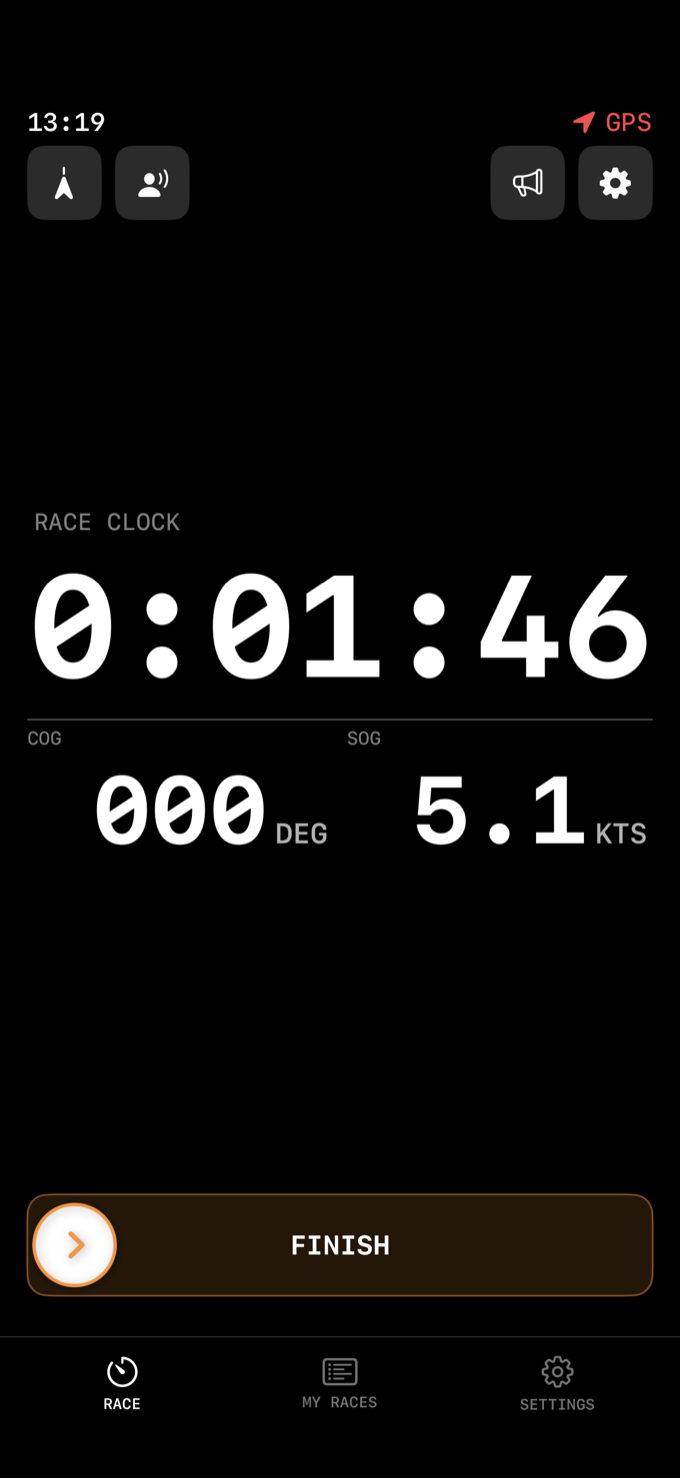
In Race mode you can display COG and SOG widgets. Configure these in Settings > Race. Both are on by default.
Tap FINISH to end the race. The race is saved to your history with timing data, GPS track, and a start rating.
7. Race Mode Transition
This setting controls when the app switches from the Start screen (with countdown widgets) to the Race screen (with elapsed time). Found in Settings > Race Mode Transition.
| Option | Behaviour | Best for |
|---|---|---|
| When line is crossed | Switches when the app detects your boat has crossed the start line. Falls back to 60 seconds if crossing isn't detected (e.g. PIN/RC not set, or GPS drift). | Most racers. Keeps start line data visible right up until you cross. |
| Immediately | Switches the instant the countdown reaches zero. | When you don't need start line data after the gun — e.g. if you're well behind the line and just want to see elapsed time. |
| After 10 seconds | Always switches 10 seconds after the start gun, regardless of position. | A middle ground — gives you a few seconds of start data after the gun before switching. |
8. Line Calculation Mode
This controls how DTL and TTL are calculated relative to the start line. Found in Settings > Line Calculation.
| Mode | How it works |
|---|---|
| Segment (default) | Treats the start line as a finite line between PIN and RC. DTL measures distance to the nearest point on the segment. TTL only appears when your heading actually intersects the line between the two marks. If you're sailing past the ends, distance measures to the nearest endpoint. |
| Infinite | Extends the start line infinitely in both directions through PIN and RC. DTL is always the perpendicular distance to this infinite line. TTL appears whenever your heading crosses the extended line in any direction. |
When to use each
Segment is correct for the vast majority of situations. It gives you accurate readings that match the physical start line between the marks.
Infinite can be useful in specific scenarios — for example, if you're approaching a very long start line from well outside the ends, or if you want TTL to remain visible even when approaching at a shallow angle that wouldn't intersect the finite segment.
9. Map & Landscape View
The map
The map shows your real-time position, GPS track, and the start line (if PIN and RC are set). Rotate your phone to landscape to see a full map view with instruments on the right side.
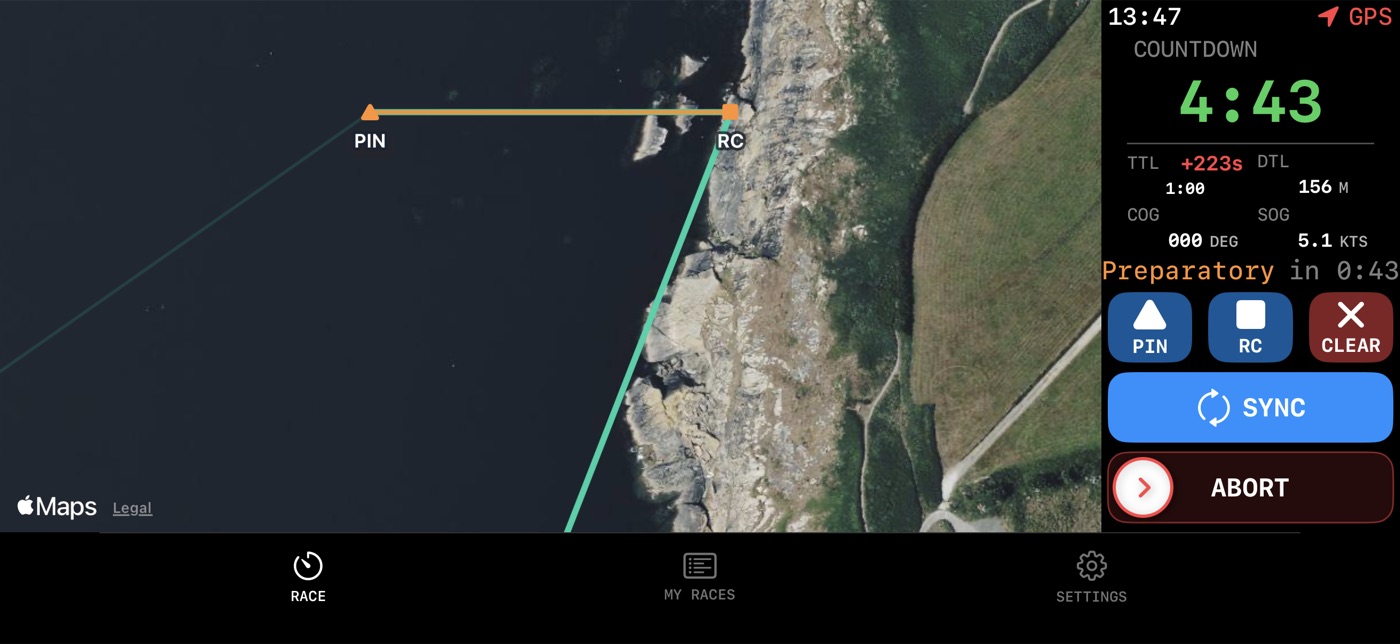
Lock map before start
Found in Settings > Map. Enabled by default.
In the final 60 seconds of the countdown, this setting locks the map orientation so the start line is horizontal across the screen and your boat approaches from below. This gives you a consistent, intuitive view of your approach regardless of your actual compass heading.
Without this setting, the map follows standard orientation and rotates freely. Some racers prefer this if they're used to a north-up chart display, but most find the locked approach view more intuitive in the heat of a start.
10. GPS Settings
Found in Settings > Navigation.
Disable All GPS Features
A master kill switch. Turning this on disables all GPS-dependent features: DTL, TTL, COG, SOG, ELI, ELD, VMG, and GPS track recording. The countdown timer still works perfectly — you just won't get any position-based data.
When to use: If you're using the app purely as a countdown timer (e.g. on the race committee boat, or on shore), or if you want to maximise battery life by not running the GPS.
GPS Track Recording
Your GPS track is recorded automatically during every race and saved with your race history. This powers the track visualization on the map and calculates your maximum speed (using a spike-filtered algorithm to ignore GPS glitches).
Bow Offset
Adjustable from 0 to 10 metres in 0.5m steps. Shifts your GPS position forward to account for the physical distance between where the phone is (usually at the helm) and the bow of the boat. All distance calculations (DTL, OCS detection) use this corrected position.
11. Display Modes
Found in Settings > Display. These control the colour scheme of the countdown screen.
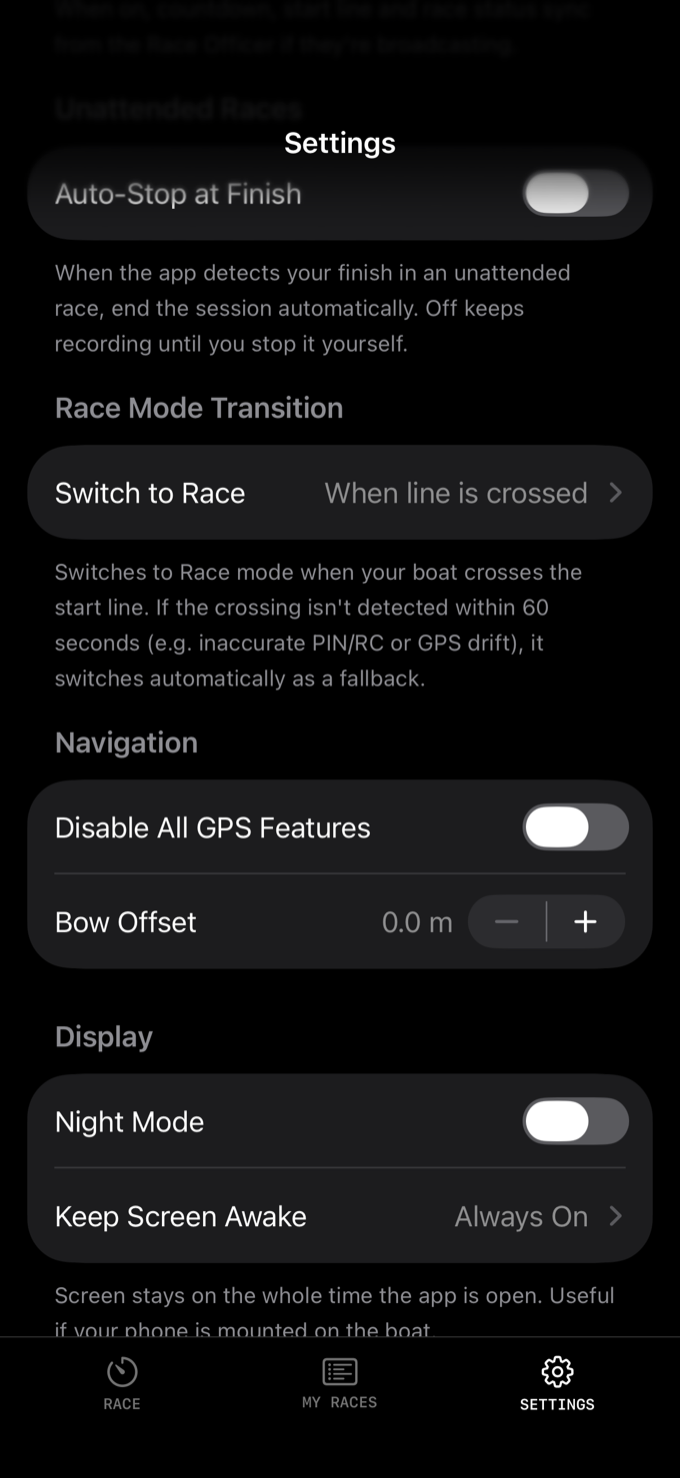
Night Mode
A dark, red-tinted colour scheme designed for low-light conditions. Red light preserves your night vision, which matters for twilight or early morning races. Useful during evening series or when you're racing at dusk.
Keep Screen Awake
Chooses when Flying Start stops your iPhone locking itself:
- Always On — the screen stays on the whole time the app is open. Use this when the phone is mounted on the boat.
- Start Sequence Only — the screen stays on through the countdown, then auto-locks once the race starts.
- Follow System — Flying Start does not override your iPhone's auto-lock setting.
12. Units
Found in Settings > Units.
| Setting | Options | Default |
|---|---|---|
| Speed | Knots, km/h, mph | Knots |
| Distance | Metres, Feet | Metres |
These affect all speed and distance displays throughout the app — SOG, VMG, DTL, and anywhere else a measurement is shown.
13. Race History & Start Rating
Tap MY RACES in the tab bar. The screen shows your season stats, the races your club has scheduled, and a chronological list of your completed races grouped by date. The list is cached, so it is drawn the moment you open the app and refreshes in the background.
Season statistics
At the top of the History screen you'll see your season stats:
- Number of starts — total races completed
- Average start score — your mean start rating across all races
- Best score — your highest start rating this season
- Average time after gun — how long after the start signal you typically cross the line
Start Rating
Every race receives a start rating out of 100 with a letter grade (A+, A, B, etc.). The rating is calculated from:
- Time after gun — how long after the start signal you crossed the line (closer to zero is better)
- Distance at gun — how far from the line you were when the gun fired (closer is better)
- Speed at crossing — your speed when you crossed the line (faster is better)
- OCS — whether you were over the line early (automatic penalty)
Race track replay
Open any finished race from MY RACES and Race Track is the first section. Your recorded GPS track is drawn on the map, and Replay runs your boat around it in about 30 seconds. Drag the slider to scrub to any moment, and the elapsed label counts in minutes and seconds — so you can go back to the last thirty seconds before the gun and see what your approach really did.
Each race also generates a shareable start card — a branded image with your rating, grade, and key metrics. Share it to social media or messages directly from the app. You can also upload it to flyingstart.app to generate a shareable web link.
14. Crew Sync (iOS only)
Crew Sync is currently available on iOS only.
Crew Sync lets multiple devices share the same race state in real-time over local networking (Bluetooth/Wi-Fi). One person hosts, everyone else joins as crew.
How it works
1 Host: On the main device, go to Crew Sync and tap Host. This device controls the race — starting the countdown, firing the gun, setting the line.
2 Crew: On other devices, go to Crew Sync and you'll see the host appear. Tap to join.
3 Race: All crew devices now mirror the host's display in real time — countdown, race clock, and state updates at 4Hz (every 250ms).
Crew audio cues
Crew devices receive countdown beeps in the final 10 seconds before the start — three high-pitched beeps followed by low beeps, plus the start signal. This means crew members don't need to see a screen to know the start is coming.
Connection status
A banner at the top shows how many crew are connected. The host sees the count, and gets a haptic when someone connects or disconnects.
15. Race Tracking
Race Tracking lets you broadcast your GPS position to spectators in real-time during a race. Accessible from the location icon in the top bar (requires sign-in and Pro subscription).
1 Tap the location icon in the top bar. Sign in if prompted.
2 Select an upcoming race from the list and tap TRACK.
3 Your GPS position is broadcast every 3 seconds to your club's event hub where spectators can watch.
4 Tap STOP TRACKING to end the broadcast, or it stops automatically when the race finishes.
Unattended Races
Some clubs run races with no race officer on the water. You check in from the app before the start, and it counts your laps and records your finish automatically as you cross the line.
The start comes from the club: either a fixed time set in advance, or the first sailor's gun. Your laps are counted as you cross, and if the club has set a separate finish line, your finish is taken there. Settings > Unattended Races > Auto-Stop at Finish decides what happens when the app detects your finish — on, the session ends by itself; off, recording continues until you stop it.
16. Notice Board
The Notice Board shows notices from your sailing club or regatta organiser. Accessible from the megaphone icon in the top bar (requires sign-in).
Notices are sorted with pinned items first, then by date. Each notice shows a category badge (Course, General, Safety, etc.), title, body preview, and timestamp. On iPhone, push notifications alert you when new notices are posted.
17. Apple Watch
The Flying Start Apple Watch app works as either a companion to your iPhone or standalone.
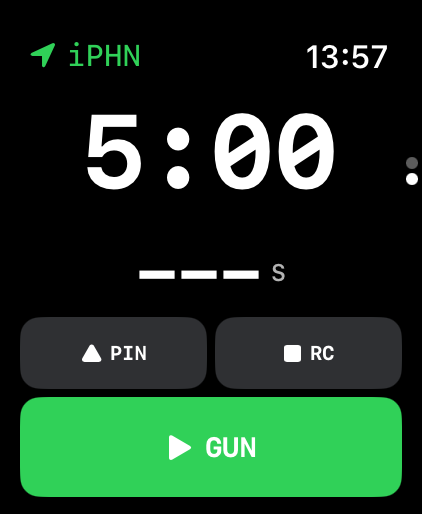
Tethered mode (iPhone nearby)
When your iPhone is reachable, the Watch mirrors the iPhone's race state. The iPhone runs all the logic — GPS, countdown, signals — and streams the display to the Watch at 4Hz. Tap the Watch screen to fire the gun or other controls, and the button press is sent back to the iPhone.
Best for: When your phone is mounted at the helm and you want a secondary display on your wrist. The Watch shows the same countdown and widgets without consuming its own GPS.
Standalone mode (no iPhone)
When the iPhone isn't reachable, the Watch runs its own race timer and GPS independently. It has the same countdown functionality and can set its own start line.
Best for: Dinghy racing where you don't want to take your phone on the water, or if you prefer to race with just the Watch.
Digital Crown
Rotate the Digital Crown to cycle through your enabled start line widgets. Each turn gives haptic feedback as you switch between DTL, TTL, SOG, COG, and any other enabled widget.
Watch settings
The Watch has its own settings screen (accessible from the Watch app), with a subset of the iPhone settings:
| Setting | What it does |
|---|---|
| Race Type | Select countdown sequence (synced from iPhone via iCloud) |
| Show Widget | Toggle whether widgets appear below the countdown on the Watch face |
| Night Mode | Red-tinted dark theme on the Watch |
| Start Widgets | Toggle each of the 7 widgets (TTL, DTL, ELI, ELD, VMG, SOG, COG) |
| Race Widgets | Toggle SOG and COG during race mode |
| Line Calculation | Segment or Infinite (same as iPhone) |
| Units | Speed (Knots/km-h/mph) and Distance (Metres/Feet) |
| Battery Saving | Reduces screen refresh rate to conserve battery |
| Haptic Feedback | Toggle vibration feedback for Digital Crown, signals, etc. |
Always-On Display
On Apple Watch models with Always-On Display, the screen dims but continues showing the countdown or race clock. Widgets and buttons are hidden in the dimmed state to save power — only the timer is visible.
iCloud sync
All settings sync between iPhone and Watch via iCloud Key-Value Store. Change a setting on one device and it updates on the other automatically.
18. Live Activity & Dynamic Island
On iPhone 14 Pro and later, Flying Start shows a Live Activity on the Lock Screen and in the Dynamic Island during a race. This displays the countdown or elapsed race time without needing to keep the app in the foreground.
The Live Activity starts automatically when a race begins and dismisses itself 5 minutes after the race finishes.
| Signal | When | Sound |
|---|---|---|
| Warning | Start of countdown (5 min or 3 min) | Single sound signal |
| Preparatory | 1 minute after warning (4 min or 2 min remaining) | Single sound signal |
| One Minute | 1 minute before start | Long blast |
| Start | Countdown reaches zero | Final signal |
The app plays these signals automatically at the correct times during the countdown. You'll also feel haptic feedback on both iPhone and Apple Watch for each signal.
19. Free vs. Pro
Flying Start is free to download and use. The free version includes everything you need for racing — the countdown timer, all five race types, COG, SOG, and race history.
Pro unlocks the full GPS start line toolkit and advanced features for serious racers:
| Feature | Free | Pro |
|---|---|---|
| Countdown timer | ✓ | ✓ |
| All race types | ✓ | ✓ |
| COG & SOG widgets | ✓ | ✓ |
| Race history & start rating | ✓ | ✓ |
| Night mode | ✓ | ✓ |
| Crew Sync (join) — iOS only | ✓ | ✓ |
| Start line definition (PIN/RC) | — | ✓ |
| DTL — Distance To Line | — | ✓ |
| TTL — Time To Line | — | ✓ |
| ELI — Early/Late Indicator | — | ✓ |
| ELD — Early/Late Delta | — | ✓ |
| VMG — VMG To Line | — | ✓ |
| OCS over-the-line alerts | — | ✓ |
| Crew Sync hosting — iOS only | — | ✓ |
| Apple Watch (companion & standalone) | — | ✓ |
| Live race tracking | — | ✓ |
Manage your subscription in Settings > Subscription. On iPhone, tap Restore Purchases to restore a previous purchase on a new device.