Race Committee Guide
The complete user manual for Flying Start Race Committee. Everything you need to set up and run races for your sailing club or regatta.
The Workflow
Every race, from a Wednesday evening club race to a world championship, follows this sequence:
Contents
- Getting Started
- The Dashboard
- Creating Your Organisation
- Inviting Committee Members
- Events & Regattas · Returning next year
- Setting Up a Series
- Adding & Managing Races
- Online Entry Forms & Confirmation
- Managing Competitors
- Importing & Migrating from Other Systems
- Entering Finish Times
- Scoring a Race
- Publishing Results
- Notice Board
- Auto-Handicap Suggestions
- Organisation Analytics
- Live Tracking
- Race Replay
- Account & Password
- Navigation Reference
1. Getting Started
1 Go to rc.flyingstart.app
This is the Race Committee admin panel. All race management happens here.
2 Create an account
Click "New here? Create an account" and enter your email and a password (minimum 6 characters). You can also use Magic Link — enter your email and we'll send you a sign-in link instead of a password.
3 Check your email
If you signed up with a password, you'll receive a confirmation email. Click the link to verify your account, then sign in. If you used Magic Link, clicking the link signs you in directly.
| Password | Traditional email + password sign-in. Toggle to "New here?" to create an account. |
| Magic Link | Enter your email, receive a link, click it to sign in. No password needed. |
| Forgot your password? | Below the sign-in button. Sends a password reset email — click the link, enter a new password. |
2. The Dashboard
After signing in, you land on the Dashboard. What you see depends on whether you've set up an organisation yet.
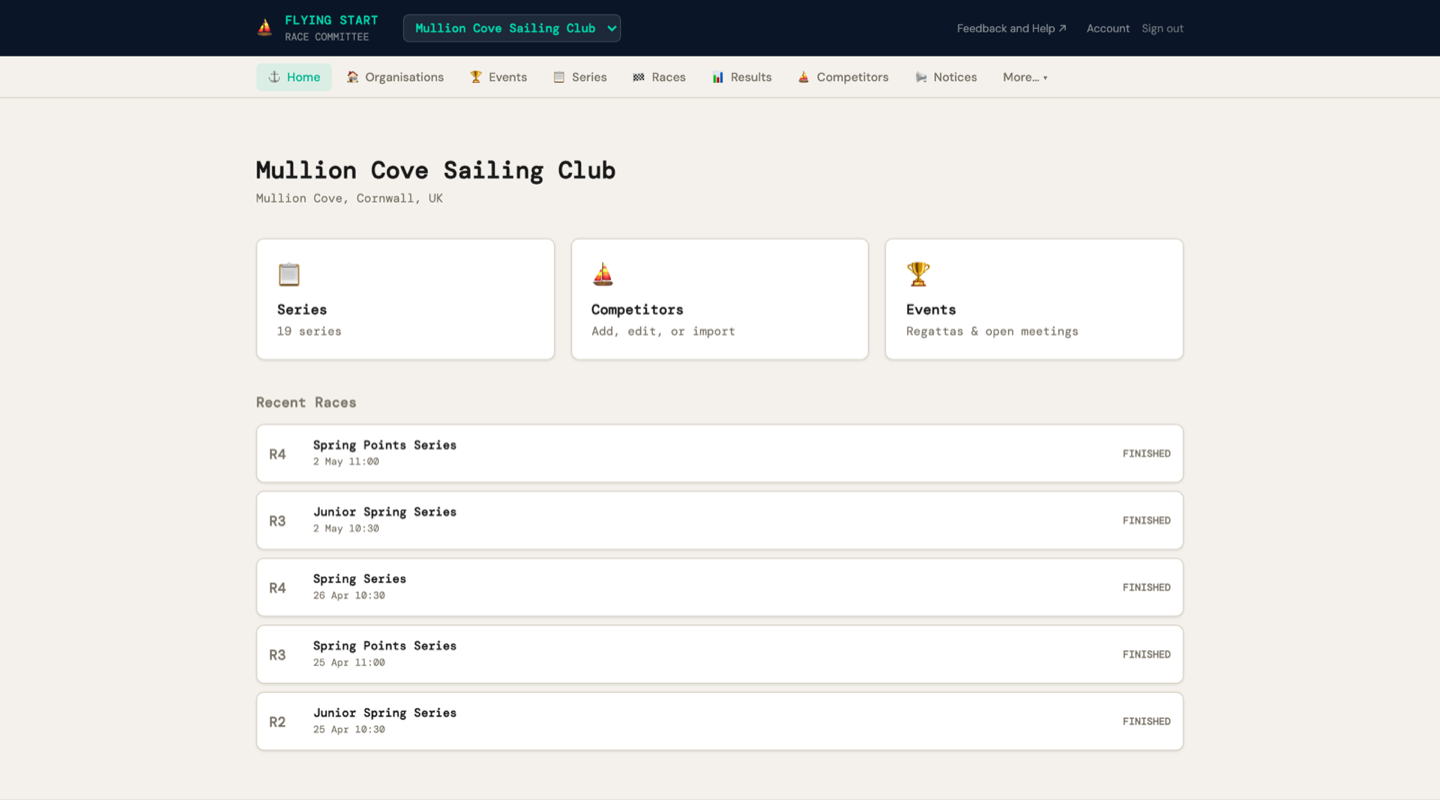
- Organisation name, venue, and invite code at the top
- Quick action cards — Series, Competitors, Events
- Recent Races — your latest races with status badges (Scheduled, Completed, Abandoned)
- If you have an organisation but no series: a "Create Series" prompt
3. Creating Your Organisation
1 Go to Organisations in the navigation bar (or click "Create Organisation" on the home page)
2 Click "+ New Organisation"
3 Enter your Organisation Name (e.g. "Itchenor Sailing Club") and optionally a Venue (e.g. "Chichester Harbour")
4 Click "Create"
You are now the Owner of this organisation. As Owner, you can:
- Invite other race committee members
- Create series and races
- Add and manage competitors
- Publish results
- Manage events, notices, and analytics
Editing organisation details
Click directly on the organisation name or venue to edit them in place. Press Enter to save, or Escape to cancel. Changes save immediately — no separate edit page needed.
Deleting an organisation
Only the Owner can delete an organisation. In the members panel, scroll to the Danger Zone and click "Delete Organisation". You must type the exact organisation name to confirm — this prevents accidental deletion.
4. Inviting Committee Members
If you have other race officers, scorers, or committee members who need access, you can invite them using your organisation's invite link.
| Invite link | A unique URL like rc.flyingstart.app/join/a1b2c3d4. Share this with colleagues. |
| Copy Link | Copies just the URL — paste into WhatsApp, Slack, or a text message. |
| Copy invite message for email | Copies a pre-written email message with the link, organisation name, and a brief explanation. |
What happens when someone clicks the invite link
- They see your organisation name and a sign-up form
- They create an account (or sign in if they already have one)
- They're automatically added to your organisation as an Officer
- They can now manage races, enter results, and add competitors
Roles
| Role | Can do |
|---|---|
| Owner | Everything — plus manage members, promote/demote roles, transfer ownership, remove members |
| Admin | Everything except managing the Owner. Can request emergency ownership recovery if the Owner becomes unavailable. |
| Officer | Create races, enter results, manage competitors, publish results |
Managing member roles
Click "👥 Manage Members & Roles" on any organisation to expand the member panel. As the Owner, you can:
- ↑ Admin — promote an Officer to Admin (gives them more permissions)
- ↓ Officer — demote an Admin back to Officer
- 👑 Make Owner — transfer ownership to another member (you become Admin)
- 🗑 — remove a member from the organisation
Transferring ownership
If you're stepping down as race officer or leaving the organisation, transfer ownership so someone else can take over:
1 Open Manage Members & Roles
2 Click "👑 Make Owner" next to the member who should take over
3 Confirm twice (the second confirmation is a safety check)
You'll become an Admin — you don't lose access, you just step down from Owner. The transfer is reversible — the new Owner can transfer back if needed.
Emergency ownership recovery
If the Owner has left the organisation, lost access to their account, or is otherwise unavailable, any Admin can request an emergency ownership transfer:
1 Open Manage Members & Roles
2 Scroll to "🔑 Emergency Ownership Recovery" (only visible to Admins)
3 Click "Request Ownership Transfer", choose who should become the new Owner, and optionally explain why
4 A 7-day waiting period begins. The current Owner is notified by email and can cancel the request during this time.
5 After 7 days, the "Finalise Transfer" button appears. Any Admin can click it to complete the transfer.
5. Events & Regattas
An Event is a container for a regatta or open meeting. Events can have multiple series (e.g. a regatta might have a Dinghy Series and a Keelboat Series), online entry forms, and a notice board.
Creating an event
1 Click "+ New Event"
2 Enter the Event Name (e.g. "Spring Regatta 2026"), Start Date, End Date, Venue (optional), and a Description (optional — for sailing instructions, schedule info, etc.)
3 Click "Create Event"
Editing event details
All event details can be edited after creation. On the Event Detail page, click directly on the event name, start date, end date, venue, or description to edit them in place. Press Enter to save, or Escape to cancel.
Linking series to an event
After creating the event, you need to link one or more series to it. This connects the entry form to your scoring — competitors can choose which fleet they're entering, and confirmed entries are automatically assigned to the right series.
1 Click into the event to open the Event Detail page
2 In the Series section, click "+ Link Series"
3 Select from your existing series. If you haven't created the series yet, go to Series and create them first, then come back and link them.
The linked series appear on the event detail page. Click on a series name to go to its detail page. Click "Unlink" to remove the connection (this doesn't delete the series — just removes it from the event).
Setting up next year — the returning user workflow
Annual regattas and club seasons typically follow the same structure year after year. Instead of rebuilding everything from scratch, copy last year's event and adjust the details. This takes a few minutes instead of an hour.
Step 1: Copy last year's event
1 Go to Events and find last year's event (e.g. "Falmouth Week 2025" or "Yachts 2025")
2 Click the "⧉ Copy" button on that event's row
3 A dialog appears with editable fields:
- Event name — pre-filled with the year updated (e.g. "Falmouth Week 2025" → "Falmouth Week 2026"). Edit freely.
- Start date and End date — pre-filled shifted by one year. Adjust as needed.
- Venue — pre-filled from the original.
4 Click "Copy Event"
The new event copies the description, linked series (with all their races), and entry form configuration from the original. Entries, competitors, results, and notices are NOT copied — you start with a clean slate for new registrations.
Step 2: Update event details
Click into the new event. Review and update the details that change year to year — click directly on any field to edit it in place:
- Event name — should already have the new year
- Start and end dates — adjust if the event moves to a different week
- Venue — update if the location has changed
- Description — update with this year's sailing instructions, schedule, or key information
Step 3: Review series
Your copied series appear in the Event Detail page. For each series, click into it and review:
- Series name — update if the name has changed (e.g. "Spring Series 2025" → "Spring Series 2026")
- Handicap system — check it's still correct for this year's fleet
- Start date — adjust to this year's first race date
Step 4: Adjust race dates
Each copied series will have its races from last year. You'll need to update the dates:
- If the schedule is similar — click into each race and edit the date and time in place. The day-of-week is usually the same, just shifted to this year's calendar.
- If the schedule has changed — delete the old races and use "+ Add Multiple Races" to generate a new schedule in one go. Set the first date, the number of races, and the interval (weekly, fortnightly, etc.).
Step 5: Open entries and publish
1 Back on the Event Detail page, click "Open Entries" to enable the online entry form
2 Click "Publish" to make the event live
3 Copy the entry form link and share it with your competitors — via email, club newsletter, social media, or notice board
That's it — your new season or regatta is set up. Competitors can now enter online, and you're ready to race.
6. Setting Up a Series
A series is a group of races scored together — for example, "Wednesday Evening Series 2026" or "Spring Championship".
Creating a series
1 Click "+ New Series"
2 Enter a Series Name (e.g. "Wednesday Evening Series 2026")
3 Choose a Handicap System:
- RYA PY — Portsmouth Yardstick. Standard for UK dinghy racing.
- IRC — International Rating Certificate. For measured yachts.
- YTC — Yacht Time Correction. Free RYA/RORC rating for cruisers. Get a free certificate.
- PHRF — Performance Handicap Racing Fleet. North American standard.
- NHC — National Handicap for Cruisers.
- Custom — Organisation-specific numbers, same formula as PY.
4 Choose a Scoring System:
- Low Point (default) — 1st = 1 point, 2nd = 2 points, etc. Lowest total wins.
- Bonus Point — Larger gaps at the front (1st = 0, 2nd = 3, 3rd = 5.7).
5 Apply RRS Rule A5.3 (checkbox, on by default):
When ticked, boats that came to the starting area but didn't finish (DNS, DNF, OCS, DSQ, RET, UFD, BFD) score boats at starting area + 1 points. Boats that didn't come at all (DNC) score entries + 1. This is fairer for club series where not every boat races every week.
When unticked (RRS A5.2 default), all non-finishers score entries + 1 regardless of attendance.
Most clubs should leave this ticked. See How Scoring Works for worked examples.
6 Click "Create Series"
Editing series details
On the Series Detail page, click directly on the series name, handicap system, scoring system, or start date to edit them in place. Handicap and scoring systems show a dropdown when clicked. The "Apply RRS Rule A5.3" checkbox can also be toggled at any time — changing it will affect scoring for all races in the series when you next score or re-score. Changes save immediately.
See How Scoring Works for the full technical reference on handicap formulas, points, discards, and tie-breaking.
7. Adding & Managing Races
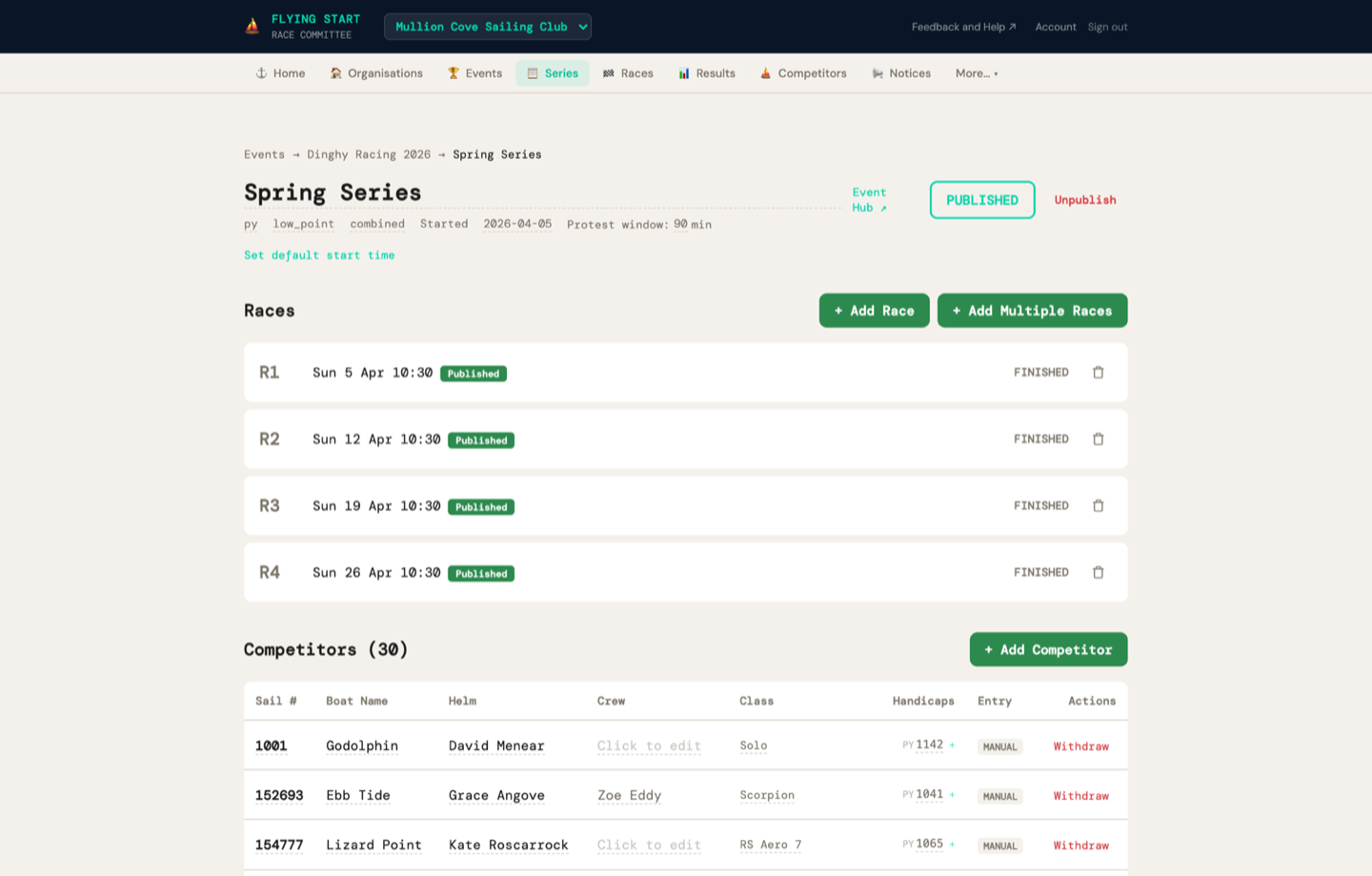
Click on a series to see its races. This is the Series Detail page.
| R1, R2, R3... | Race number |
| Date & Time | Scheduled date and time (e.g. "Wed 26 Mar 18:00"), plus wind conditions if entered |
| Status | Scheduled (grey), Started (yellow), Completed (green), Abandoned (red) |
| PUB | Green badge if results are published to the web |
| 🗑 | Red bin icon — click to delete, then confirm |
Default start time
In the series header, click "Set default start time" to set a time that pre-fills every new race. For example, set "18:00" for Wednesday evening racing — every race you add will default to 18:00. You can override the time for any individual race.
Adding a single race
1 Click "+ Add Race"
An inline form appears with a date picker and time field.
2 The date auto-guesses the next logical race date based on your existing schedule. If your races are weekly on Wednesdays, it suggests next Wednesday. Adjust if needed.
3 The time pre-fills from the series default (if set). Override it for this race if needed, or leave blank.
4 Click "Add Race"
Adding multiple races at once
Perfect for setting up an entire season in one go.
1 Click "+ Add Multiple Races"
2 Set the first race date, number of races (e.g. 7), and interval:
- Same day — for regattas with multiple races on one day
- Daily — for regatta weeks
- Weekly — for club evening or weekend series
- Fortnightly — for less frequent racing
3 Click "Create 7 Races" (or however many). All races are created with correct dates and the series default start time.
Editing race details
On the Race Detail page, click directly on the scheduled date or start time to edit them in place. This is useful for adjusting race times after the schedule has been created — for example, if a race is moved due to weather.
Deleting a race
Each race row has a red 🗑 bin icon on the right. Click it, then click "Confirm" to delete. After deletion, remaining races are automatically renumbered — there will never be a gap (e.g. R1, R3 becomes R1, R2).
Copying a series from a previous season
The fastest way to set up a new season.
Most clubs run the same series structure every year. Instead of creating everything from scratch, copy last year's series:
1 Go to Series in the navigation bar
2 Find last year's series and click the "⧉ Copy" button (faded until hover)
3 A dialog appears with editable fields:
- New series name — pre-filled with the year updated (e.g. "Wednesday Evening 2025" → "Wednesday Evening 2026"). Edit it to whatever you want.
- First race date — the date of the first race in the new season. All other races shift relative to this.
4 Click "Copy"
The system creates a new series with:
- The name you chose (defaulting to the year-bumped original)
- Same handicap system, scoring, discards, and default start time
- All races shifted to the new dates — if the original had 12 weekly races, you get 12 weekly races starting from the date you chose
- No results — the new series is a blank slate ready for the new season
8. Online Entry Forms & Confirmation
Events can have online entry forms that competitors fill in themselves — no typing for you. When you confirm entries, competitors are automatically added to your Competitors list and assigned to the right series.
Setting up online entries
1 Make sure you have linked at least one series to the event (see Events section above). This is important — it lets competitors choose their fleet when entering, and lets you assign them correctly.
2 Click "Open Entries" — this enables the entry form
3 Click "Publish" — this makes the event visible to the public
4 A green Entry Form Open banner appears with a shareable link: flyingstart.app/events/{slug}/enter
5 Click "Copy Link" and share it — post it on your website, email it to your mailing list, share on social media
What competitors see
The entry form is a clean, light-themed public page (no login required). Competitors fill in:
- Sail number and helm name (required)
- Crew name, boat class, and email (optional)
- Series selection — if the event has multiple series, competitors see checkboxes and can select which series they want to enter
- Handicap ratings — the form dynamically shows handicap input fields based on the selected series. If a competitor selects only IRC series, they only need to enter their IRC rating. If they select both PY and IRC series, they see inputs for both. The handicap systems are determined by the series, not entered manually.
Managing entries
Back on the Event Detail page, you see all entries in a table showing Sail #, Helm, Class, Club, Series, Status, and Actions. The Series column shows which series the competitor has been assigned to (for confirmed entries) or which series they requested (for pending entries, shown dimmed). Use the status filter buttons to show all entries or filter by status:
| Pending (yellow) | New entry waiting for your review |
| Confirmed (green) | Entry accepted — competitor created, assigned to series, email sent |
| Waitlisted (blue) | On the waiting list |
| Cancelled (red) | Entry cancelled |
Confirming entries individually
1 Click "Confirm" next to an entry
If the event has linked series, a series selector appears — choose which series to assign them to.
2 Click "✓ Confirm" to confirm
This does three things automatically:
- Creates the competitor in your organisation's competitor list (or matches them by sail number if they already exist)
- Assigns them to the series you selected
- Sends a confirmation email (if they provided an email address) — a branded Flying Start email confirming their entry, series, and sail number
Confirming all entries in bulk
For large events with many entries, use the bulk confirmation:
1 Click "✓ Confirm All Pending (N)" at the top of the entries section
2 A panel opens. If the event has multiple series, choose which series to assign all pending entries to. If there's only one series, it auto-selects.
3 Click "✓ Confirm All & Send Emails"
The system processes each entry in sequence with a live progress counter ("Confirming 5 / 23..."). Each entry creates a competitor, assigns them to the series, and sends a confirmation email.
Adding entries manually
Not all competitors will enter online. The race committee can add entries directly from the Event Detail page:
1 Click "+ Add Entry" at the top of the entries section
2 A form panel opens. Start typing in the search field to find existing competitors by sail number, name, or boat class. Selecting a match auto-fills all the fields.
3 For a new competitor, fill in Sail Number (required), Helm Name (required), and optionally Crew Name, Boat Class, and Email
4 Select which series the competitor is entering (checkboxes). Handicap input fields appear automatically based on the handicap systems used by the selected series.
5 Click "Add Entry"
The entry is created as confirmed immediately (no pending step needed for manual entries). The competitor is added to your competitor list and assigned to the selected series. No confirmation email is sent.
Closing entries
When you're ready to stop accepting entries, click "Close Entries". This disables the public entry form — anyone clicking the link sees a "Entries are closed" message. Closing entries does NOT send any emails — it just shuts the door.
9. Managing Competitors
Competitors belong to your organisation, not to individual series. The same competitor list is shared across all series — so you only enter each boat once.
| Column | What it means |
|---|---|
| Sail # | The boat's sail number (e.g. 12345) |
| Helm | The skipper's name |
| Class | Boat type (e.g. Laser, J/24, RS400) |
| Handicap | The boat's PY/YTC/IRC number. Click to edit inline |
| 🗑 | Red bin icon — click to delete the competitor, then confirm |
Editing competitor details
Every field in the competitor table is editable. Click directly on any sail number, helm name, boat class, or handicap to edit it in place. Press Enter to save, or Escape to cancel.
Adding a competitor manually
1 Click "+ Add"
A form appears with fields for Sail Number, Helm Name, Boat Class, and Handicap (defaults to 1100 for PY).
2 Fill in the details and click "Add Competitor"
Editing a handicap
Click on any competitor's handicap number in the table. An inline editor appears — type the new value and press Enter or click ✓ to save.
10. Importing & Migrating from Other Systems
Flying Start can import data from most sailing race management systems. Whether you're migrating from Sailwave mid-season or adding GPS tracks from RaceQs, the import page handles it.
| Sailwave XML (.xml) | Full migration — competitors, series, races, and results with pre-import score verification. The richest import. In Sailwave: File → Export → XML. |
| World Sailing XRR (.xml) | International standard — used by HalSail, Manage2Sail, and national federations. Imports competitors, races, and results. Flying Start auto-detects whether an .xml file is Sailwave or XRR. |
| CSV / TSV (.csv, .tsv) | Competitor lists — from any spreadsheet. Flexible column matching ("Sail", "SailNo", "Sail Number" all work). |
| Sailwave (.blw) | Sailwave native format — imports competitor lists and handicaps. |
| GPS Tracks (.gpx) | Race replay data — from RaceQs, Garmin, or any GPS app. Shows track stats (distance, speed, duration) and feeds the race replay system. |
Where to get export files from other systems
| Sailwave | File → Export → XML (recommended) or save as .blw |
| HalSail | Export to CSV from the Boats menu, or export XRR if available |
| Manage2Sail | Export results in XRR format from the admin panel |
| RaceQs | Export GPS tracks as .gpx from the event page |
| Any spreadsheet | Save as .csv with columns for sail number, helm name, class, and handicap |
1 Go to Import / Export under More… in the navigation bar
2 Drag and drop your file onto the drop zone (or click to browse)
3 Preview the parsed data — check that names, sail numbers, and handicaps look correct
4 Choose your import mode:
- ⚡ Full Import (XML only) — runs a pre-import verification, then creates the series, all races, and all results.
- Import Competitors Only — just adds competitors to your organisation. Use when starting a new series from scratch.
Pre-Import Verification (Full Import only)
When you click ⚡ Full Import, Flying Start runs its own scoring engine on the raw data from Sailwave and compares the results. This gives you confidence that Flying Start produces the same results before you commit to switching.
| Verdict banner | Overall match percentage — green (perfect), yellow (minor rounding differences), red (significant differences) |
| Stats row | Total races, finishers, matches, and mismatches at a glance |
| Race-by-Race table | Click any race to expand and see exactly which boats differ and by how much. Each mismatch shows Sailwave's value vs Flying Start's value, the field (corrected time, position, or points), and severity |
| Series Standings | Side-by-side comparison of overall rankings — Sailwave rank vs Flying Start rank, total points from each system |
After reviewing the report, you choose which scores to use:
| Sailwave scores (default) | Preserves Sailwave's original corrected times, positions, and points exactly as they were. Best for mid-season migration — results don't change. |
| Flying Start scores | Uses Flying Start's independently calculated results. Best for importing historical data to verify our engine, or when you prefer our calculation. |
Then click "⚡ Import" to proceed, or "Cancel" to go back.
CSV format
Your CSV needs at minimum a column for sail number and helm name. The importer recognises these column headers (case-insensitive):
- Sail number: "Sail", "SailNo", "Sail Number", "Sail_No", "Number"
- Helm name: "Helm", "Name", "Skipper", "Helmsman", "Helm Name"
- Boat class: "Class", "Boat", "Boat Class", "Type"
- Handicap: "Handicap", "PY", "Rating", "YTC", "NHC", "TCC", "PHRF"
11. Entering Finish Times
Click on a race to open the Race Detail page. This is where you enter finish times and score the race. The page shows only the competitors enrolled in that series — not your entire organisation. This includes both competitors who entered online and those added manually by the race committee.
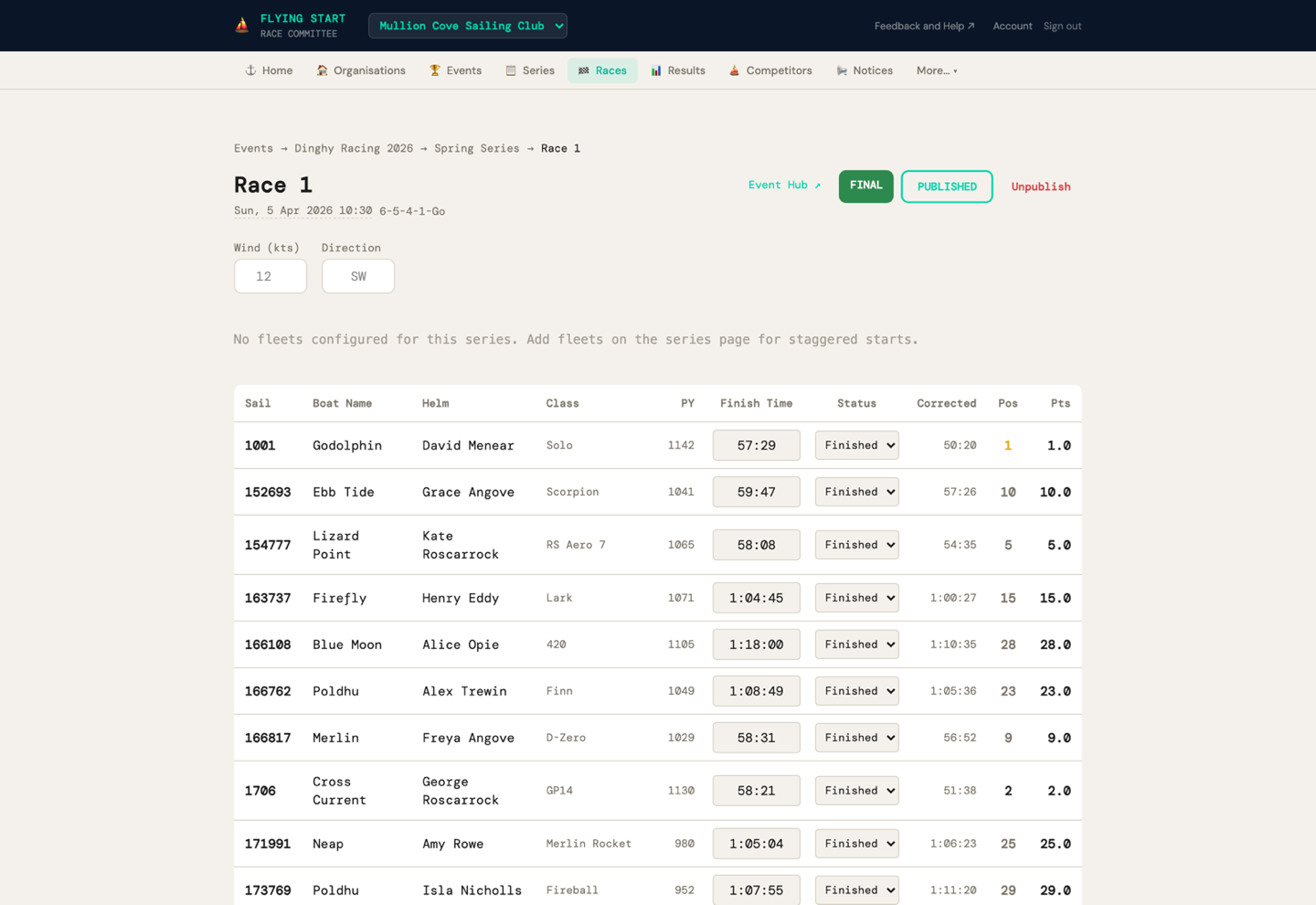
| Column | What to do |
|---|---|
| Sail | Sail number (read-only) |
| Helm | Helm name (read-only) |
| Class | Boat class (read-only) |
| Handicap | The handicap rating for this series' handicap system (e.g. PY rating for a PY series, IRC for an IRC series). If a competitor has multiple handicap ratings, the correct one for this series is used automatically. |
| Finish Time | Enter the elapsed time: 39 = 39 seconds, 39:30 = 39 min 30 sec, 1:39:30 = 1 hr 39 min 30 sec |
| Status | Dropdown: — (didn't race), Finished, DNS, DNF, OCS, DSQ, RET, DNC, UFD, BFD |
1 For each boat that finished: type their elapsed time in the Finish Time column. The status automatically changes to "Finished".
2 For boats that didn't finish: select the appropriate penalty code from the Status dropdown (DNS, DNF, OCS, etc.). The finish time field is disabled.
3 Optionally enter Wind speed (knots) and Direction at the top of the page.
12. Scoring a Race
1 After entering finish times, click the green "Score Race" button at the bottom of the page.
The scoring engine:
- Calculates corrected time for each finisher using the series' handicap formula
- Sorts by corrected time (lowest wins)
- Assigns positions (1st, 2nd, 3rd...)
- Calculates points based on position and the scoring system
- Assigns penalty points to non-finishers (DNS, DNF, OCS, etc.)
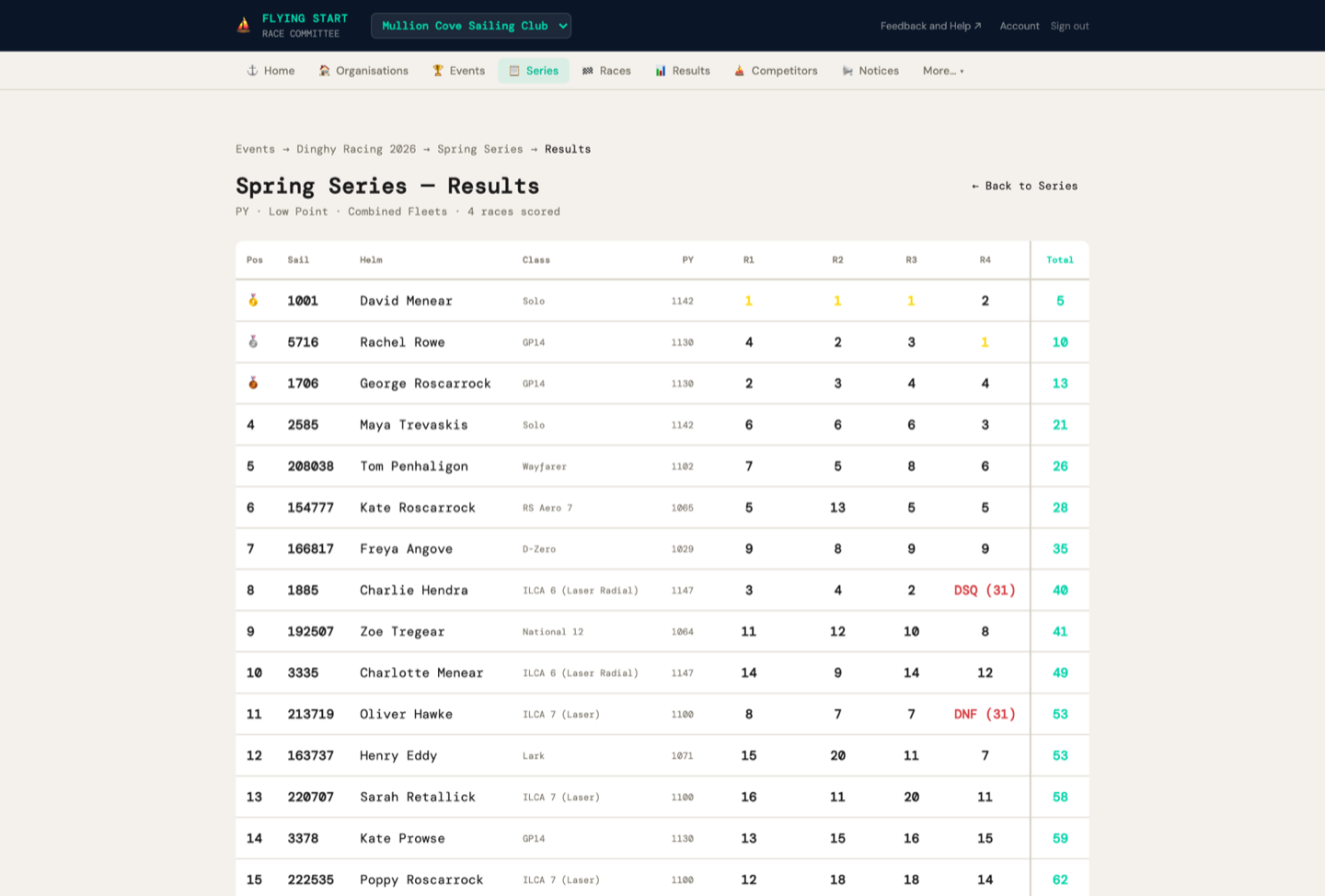
Three new columns appear in the table:
| Corrected | The handicap-adjusted time |
| Pos | Position — colour-coded: 1st (gold), 2nd (white), 3rd (orange) |
| Pts | Points for this race |
If you made a mistake, edit the finish times and click "Re-Score Race".
13. Publishing Results
Once you're happy with the results, you can publish them to the web.
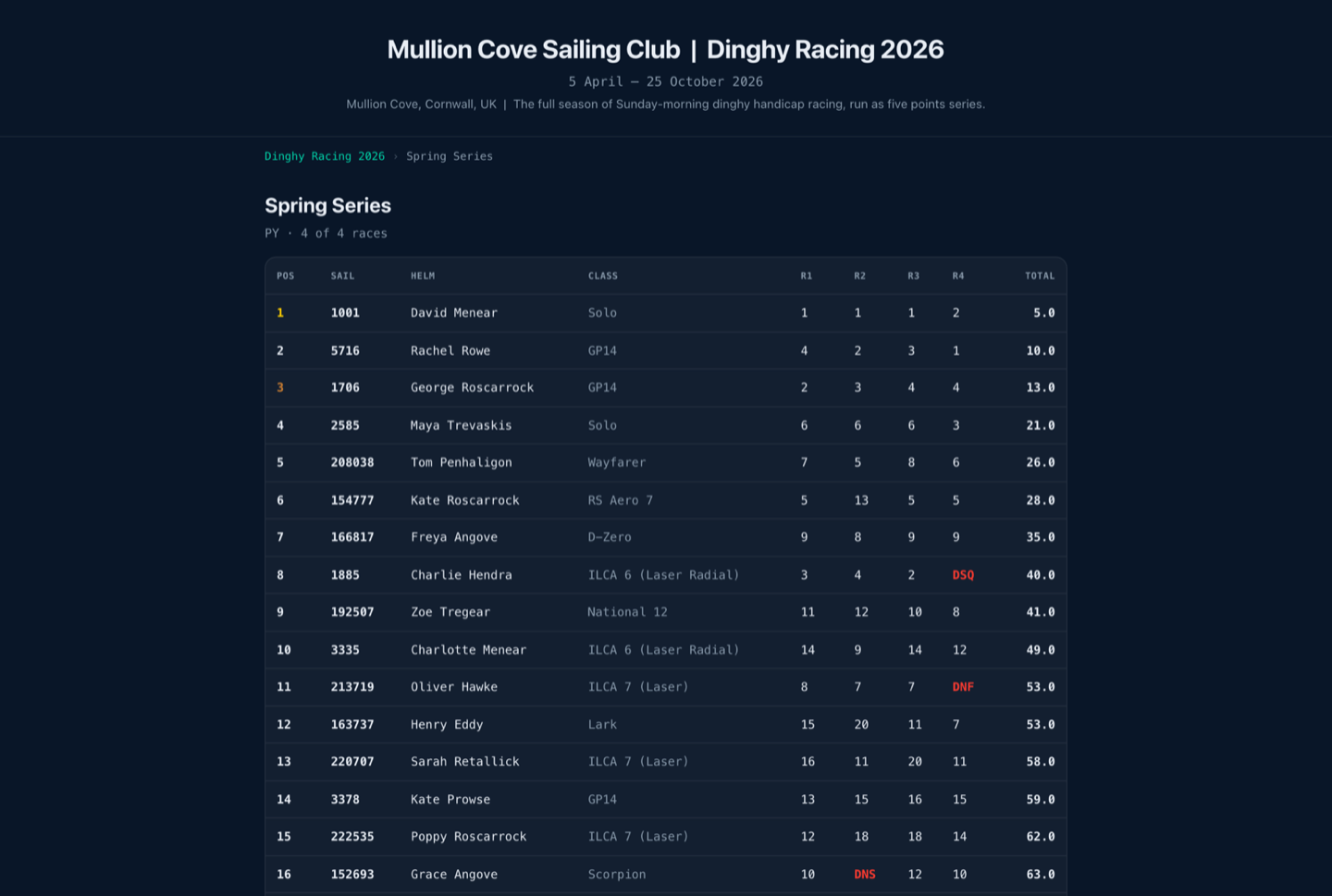
1 On the Race Detail page, click "Publish Results" (blue button, top right)
Published results are visible to anyone at:
- Single race:
flyingstart.app/results/?race={raceId} - Series standings:
flyingstart.app/results/?series={seriesId}
After publishing, three links appear on the race page:
| Results ↗ | Opens the public results page for this race |
| Replay ↗ | Opens the GPS race replay viewer (if GPS tracks have been uploaded) |
| Live ↗ | Opens the live tracking page (for spectators during the race) |
You can also publish an entire series from the Series Detail page — click "Publish" next to the series name. This makes the series standings page visible.
Abandoning a race
One additional button appears on unpublished races:
| Abandon (red) | Marks the race as abandoned — it's excluded from series scoring. Use for races stopped due to weather, safety, etc. |
The action requires confirmation before proceeding.
14. Notice Board
Post announcements for competitors — course changes, sailing instruction amendments, protest information, and safety notices.
Categories
Match a real sailing notice board:
| General | General information and announcements |
| Course (blue) | Course layout changes |
| Amendment (yellow) | Changes to sailing instructions |
| Protest (orange) | Protest-related notices and hearing schedules |
| Safety (red) | Safety information and warnings |
Pinning: Check "Pin to top" when creating a notice to keep important items at the top of the board regardless of date. Click "Unpin" to remove the pin.
15. Auto-Handicap Suggestions
After several races, the system can analyse corrected time performance and suggest handicap adjustments. This eliminates hours of committee debate.
Requirements
- At least 4 completed races in the series
- Each race needs at least 2 finishers
- The competitor must have finished at least 60% of their races
- The suggested change must be ≥ 5 points (for PY/YTC/NHC)
Reading the suggestions table
| Current | The competitor's current handicap |
| Suggested | What the system recommends |
| Delta | The change. Red (+) = handicap should increase (boat is too fast). Green (-) = should decrease. |
| Avg Pos | Their average corrected time position |
| Races | How many races the analysis is based on |
| Apply | Click to update the competitor's handicap immediately |
See How Auto-Handicap Works for the technical algorithm.
16. Organisation Analytics
Zero-configuration analytics generated from your race data. Perfect for AGM reports.
What you get
| Headline stats | Total races, total competitors, average turnout, completion rate, season trend (+/- %) |
| Participation chart | Bar chart showing turnout per race |
| Top Sailors | Ranked by average corrected position, with race count and wins (gold highlight for 1st) |
| Fleet Breakdown | Boat classes with percentage bars — see which classes are growing or declining |
| Season Trend | Compares first half vs second half of the season: Growing, Stable, or Declining |
17. Live Tracking
Spectators can follow a race live on a map. Every competitor running the Flying Start app on their phone broadcasts their GPS position every 3 seconds.
Sharing the live tracking link
On a race's detail page, click "Event Hub ↗" to open the public event hub at the live race. Share the URL with the clubhouse, family, or social media.
What spectators see
- Satellite map with boat positions updated in real time
- Colour-coded boats with sail number labels
- Trail lines showing each boat's path
- Fleet list with speed in knots
- Pulsing "LIVE" indicator
- Start line overlay (if PIN/RC marks were set)
18. Race Replay
After a race, if competitors uploaded their GPS tracks via the Flying Start app, you can watch an animated replay of the entire race on a satellite map.
Watching a replay
On the race's detail page, click "Event Hub ↗" and open the race in the hub. The replay is part of the race view there. The same button serves the live race and the replay afterwards — the hub is the only public race page.
Replay controls
| Play / Pause | Start or stop the animation |
| Time slider | Scrub to any point in the race |
| Speed buttons | 1×, 2×, 5×, 10× playback speed |
| Leaderboard | Live position ranking on the right side |
Each boat is shown as a coloured arrow pointing in the direction of travel, with a trail showing where they've been. The start line is shown as a dashed red line.
19. Account & Password
Changing your password
Click "Account" in the header, at the top right. Enter your new password, confirm it, and click "Update Password".
Resetting a forgotten password
On the login page, click "Forgot your password?". Enter your email, click "Send Reset Link". Check your email and click the link — you'll land on the Account page where you can set a new password.
Signing out
Click "Sign out" in the header, at the top right.
Deleting your account
On the Account page, scroll to the Danger Zone section and click "Delete Account".
Once all ownerships are transferred (or if you don't own any), type DELETE to confirm. Your account, all memberships, and associated data will be permanently removed. You will be signed out and redirected to the login page.
20. Navigation Reference
A navigation bar runs across the top of every page. Eight items are always shown, and three more sit under More…:
| ⚓ Home | Organisation overview, quick actions, recent races |
| 🏠 Organisations | Create/manage organisations, invite committee members |
| 🏆 Events | Create regattas, manage online entries |
| 📋 Series | Create series, manage races within each series |
| 🏁 Races | Every race, with race control and finish entry |
| 📊 Results | Scored results, publishing |
| ⛵ Competitors | Add/edit/remove competitors, edit handicaps inline |
| 📢 Notices | Post and manage notice board items |
| 📊 Handicaps (More…) | Auto-handicap analysis and suggestions |
| 📈 Analytics (More…) | Organisation participation stats, top sailors, fleet breakdown |
| 📂 Import / Export (More…) | Import competitors from CSV or Sailwave .blw files |